Category: Wordpress

  • Integrate Memberful SSO Using MiniOrange Authentication

    Integrate Memberful SSO Using MiniOrange Authentication

    Introduction to Memberful

    Introduction to Memberful
    Memberful is a freemium membership management platform for creators, communities, and businesses. With this platform, users can manage and monetize subscription-based websites. It comes with three payment tiers and the free plan is perfect for beginners. After signing up with Memberful, you will have an account on ‘test payment mode’. This will allow you to set up your membership site and explore all the free and premium features without any commitments until you begin accepting real payments. Moreover, this platform is easy to use while most of its setup and management happens through the Memberful dashboard. Its streamlined interface is different from WordPress as it allows you to effortlessly create subscription plans. You can also track site activity and manage member data easily with Memberful. Additionally, the user-friendly design of Memberful makes it an excellent choice for users looking for a scope to launch a membership site. To work with Memberful and enjoy a smooth experience, you do not need deep technical knowledge.

    Introduction to MiniOrange

    Introduction to MiniOrange
    Take a look below to understand what is MiniOrange?MiniOrange is a cybersecurity company that specializes in Identity and Access Management (IAM). It brings to the table a diverse range of tools to secure user authentication and manage access to digital resources across cloud and on-premise platforms. By utilizing MiniOrange, you can access solutions such as Multi-Factor Authentication, Single Sign-On aka SSO integrations, Identity Federation, and User Provisioning. These technologies also support various standards such as OpenID Connect, OAuth, and SAML. Besides this, it also integrates with several other platforms including WordPress that helps provide a seamless and secure login experience. MiniOrange SSO is also widely trusted for streamlining authentication, enhancing security, and enhancing secure access to enterprise applications and services.As a trusted provider of IAM solutions, MiniOrange provides cloud-based and On-Premise solutions to more than 200,000 users globally.

    How to Integrate SSO MiniOrange- Step-by-Step Guide

    For a detailed guide on how to integrate MiniOrange, follow the steps mentioned below. 1. Login to
    https://yourwebsitedomain.memberful.com/admin/


    2. After logging in go to the settings option and navigate to Custom Application to ensue MiniOrange authentication.


    3. Create a New Custom Application


    Note: The Client ID and Client Secret are required during the setup of SSO MiniOrangee, so be sure to copy them. 4. Log in to the site, and then navigate to the dashboard. Look for the Mini Orange plugin option and click on “Plugin Configuration.”


    5. Enter the following details.Display App name: Add App name the same as created on Memberful custom application nameRedirect/Callback URL: Add your site URLClient ID: Paste the copied client ID hereClient Secret: Add the copied client secret ID hereScope: Add all here manually.


    6. Click on Finish. This will create a new test login window. To open it, you need to log in and validate the authentication process. Consider using WordPress user details for this.

    7. After successful verification, you must add Attribute mapping

    Follow the steps mentioned above, you can integrate and successfully activate Memberful and Mini Orange.

    To sum up

    Finally, by integrating Memberful and MiniOrange SSO, you can focus on improving your membership site’s user experience while ensuring robust security. By following the steps mentioned above, you can provide seamless and secure access for your members and ensure minimal hassle. Prepared to watch your membership sites ace the next levels? Your search ends here. Get in touch with our experts at MoreYeahs to receive tailored guidance and advanced solutions to optimize your platform.
  • Integrating Microsoft Authentication in WordPress

    Integrating Microsoft Authentication in WordPress

    Begin by introducing the importance of secure user authentication on a WordPress site and the benefits of integrating Microsoft authentication. You cannot totally rely on the username and password; you need to cross check while verifying through Microsoft accounts often includes the multi-factor method.

    1. Enhanced Security:

    Microsoft authentication adds an extra layer of security to your WordPress site. With enhanced security, you can get the surety that authentication validates with. With the multi-factor enhanced security, it adds an extra layer of security.

    2. Single Sign-On (SSO) Convenience:

    Integrating Microsoft authentication enables Single Sign-On, allowing users to log in to your WordPress website using their Microsoft credentials. This improves user experience by reducing passwords they need to remember.

    3. Trusted Identity Provider:

    Microsoft is a trusted and widely used identity provider. Leveraging Microsoft authentication adds credibility to your login process, as users are likely to be familiar and comfortable with Microsoft login interface.

    4. Compliance with Security Standards:

    Microsoft authentication often joins industry standards. Align your authentication process with best practices, provide compliance with data protection and privacy regulations.

    5. Access to Microsoft Graph API:

    Microsoft Graph API allows your WordPress website to access data from Microsoft 365 services. This integration enables features like syncing user profiles, calendar events, or other Microsoft services to provide more integrated and productive user experience. 

    Following is the step-by-step process to configure the setup to Integrate Microsoft Authentication in WordPress

    Step 1: Register Your App in Microsoft Azure:

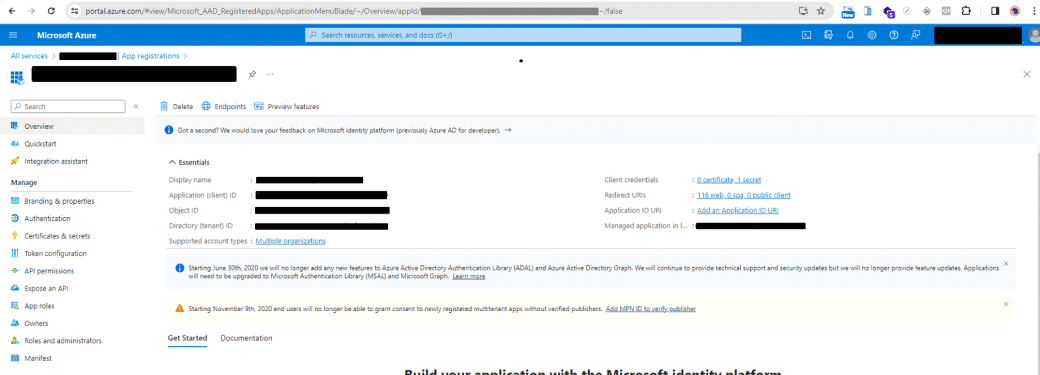
    Go to Microsoft Azure Portal. Navigate to Azure Active Directory section. Register new application and note down the Application ID and Directory ID.

    Step 2: Configure Authentication Settings:

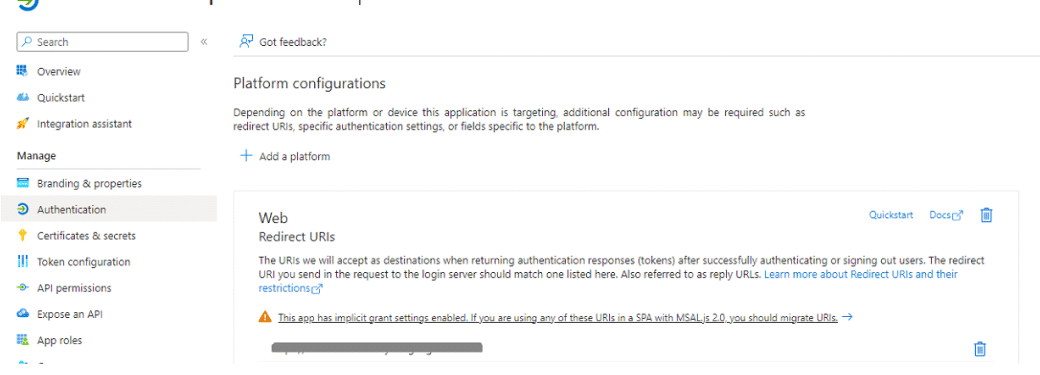
    Go to https://portal.azure.com/ site setup authentication.Set up Redirect URIs for your WordPress site. Configure the necessary permissions for your app, such as user. Read and openid.
    Microsoft Azure
    Microsoft Authentication

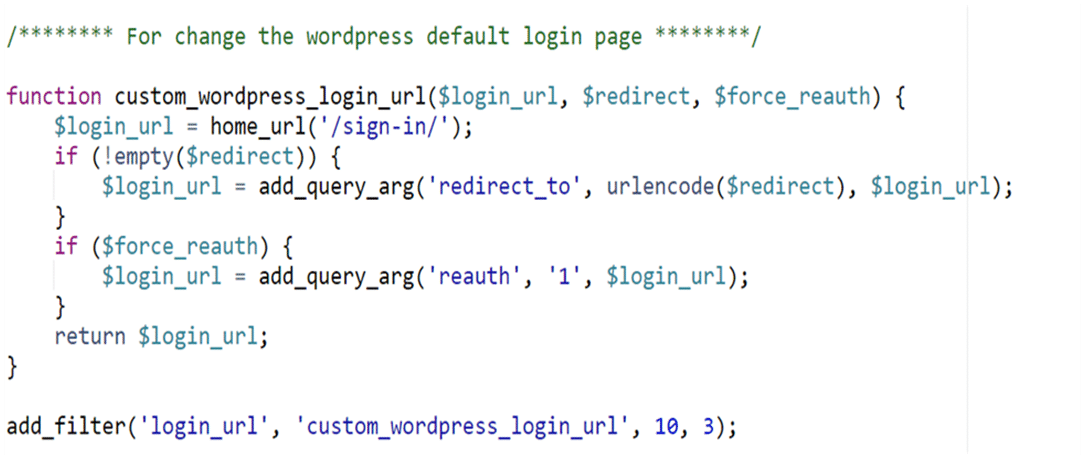
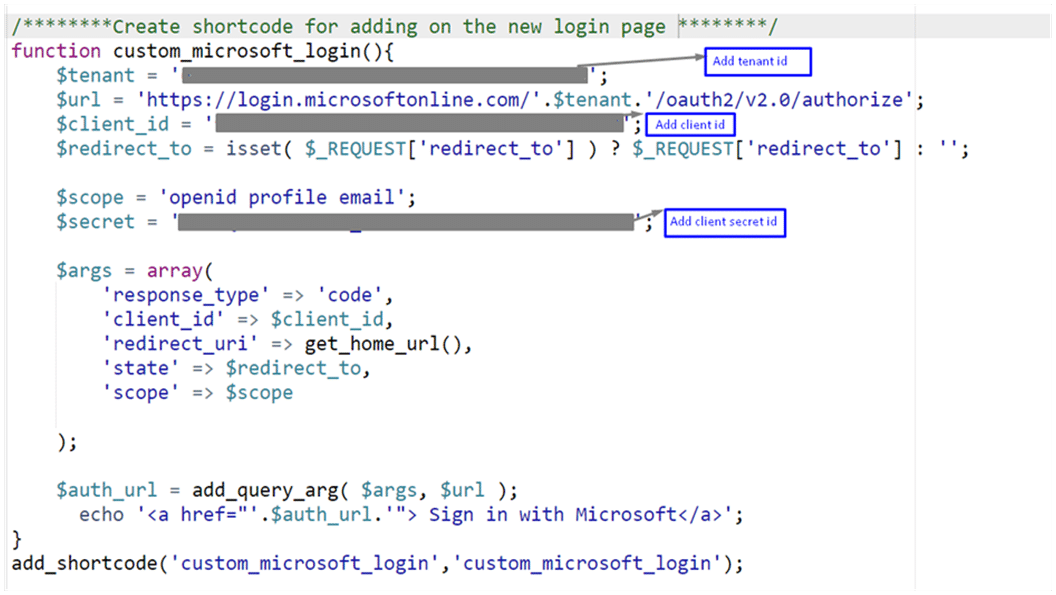
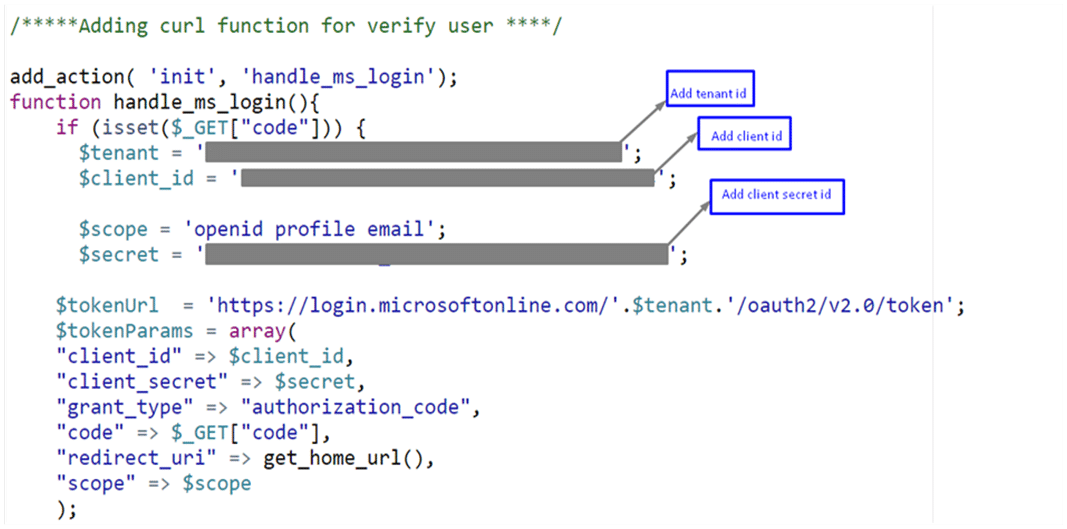
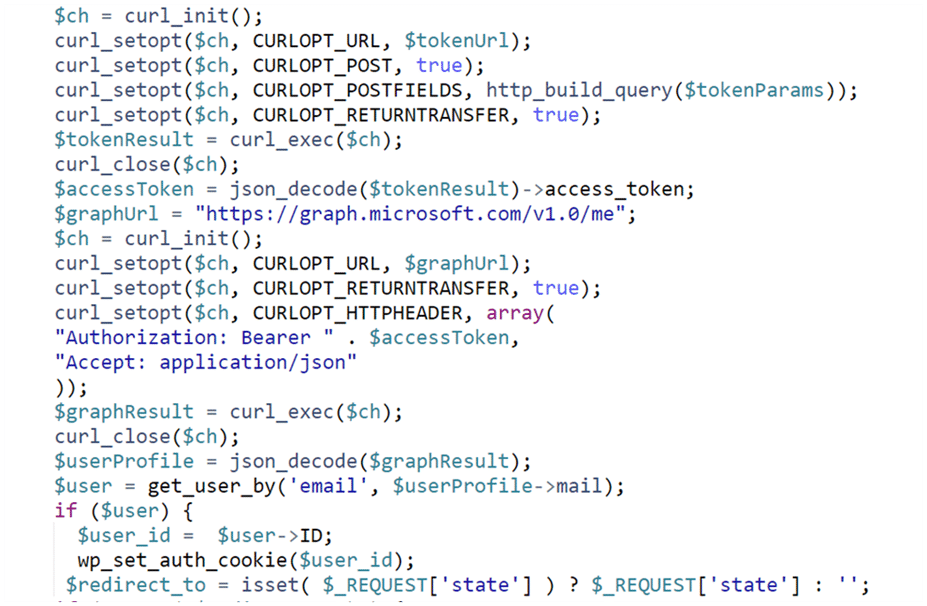
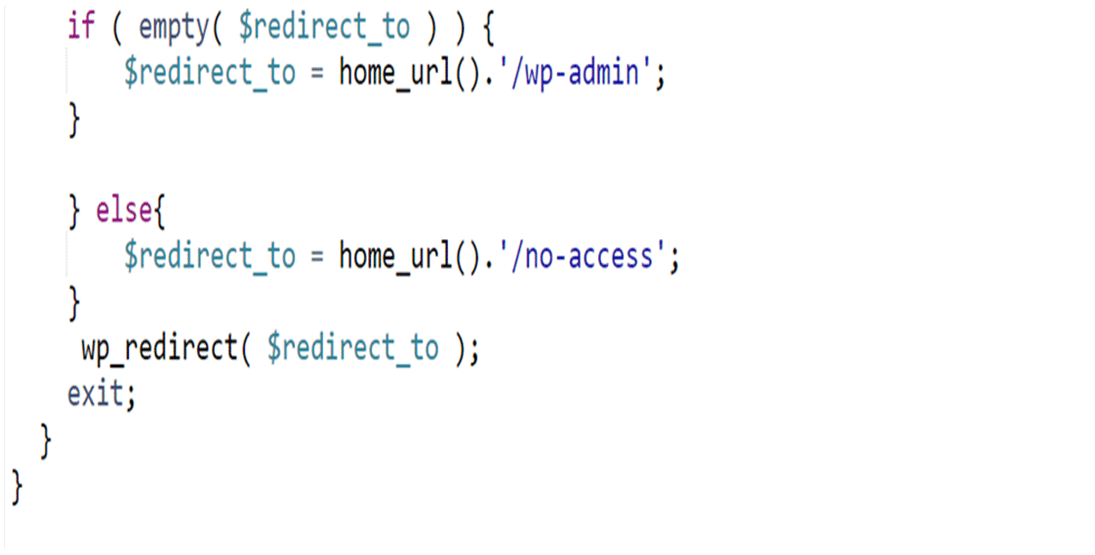
    Step 3: Add following code on function file [Wordpress]

    Default login page
    New login page

    Curl function_1
    Curl function_2

    Step 4: Create two new pages:

    1. Sign in page: –

    Put shortcode [custom_microsoft_login] in the page it will redirect user to Microsoft login2. No access page: –

    For unregister user who are trying to login on site display a text massage

    “Unable to find your account….”

    Step 5: Test the Integration:

    Log out of your WordPress site.Access login page and verify the Microsoft authentication option is available. Click on Microsoft login button and ensure users can log in using their Microsoft credentials.

    Step 6: Customize the User Experience:

    Customize login and registration pages to align with your site’s design. Consider adding additional features like profile synchronization, user role mapping, etc.

    Step 7: Ensure Security:

    Monitor your Azure AD B2C app settings for any security updates or changes.

    Conclusion:

    Sum up the key steps and benefits of incorporating Microsoft authentication into WordPress. We encourage readers to implement this feature for a more flexible user experience on their websites. Implementing Microsoft authentication in WordPress is a robust process which encourages work culture and process smoother. Authentication is a very crucial part when we seek data security and content safety and which is crucial to adopt in your work culture. We At MoreYeahs are equipped with certified and experienced professionals that will support your business to operate under the optimum and latest updated safety attributes trending in the market.To get robust security and operate fearlessly it is recommended to cover your system with superlative security. Get connected with us for a free consultation for Integrating Microsoft Authentication in WordPress and get authentic WordPress Web Development Services with 360-degree support